Safari (iOS) stands out as a browser of choice for users prioritizing privacy, largely due to its robust anti-fingerprinting capabilities. Digital fingerprinting has become an increasingly common method for websites to track users across the internet, often without their explicit consent.
Safari’s defenses against this technique provide a significant layer of protection, making it more difficult for websites to create a unique profile based on your browser settings, installed fonts, and other identifying characteristics.
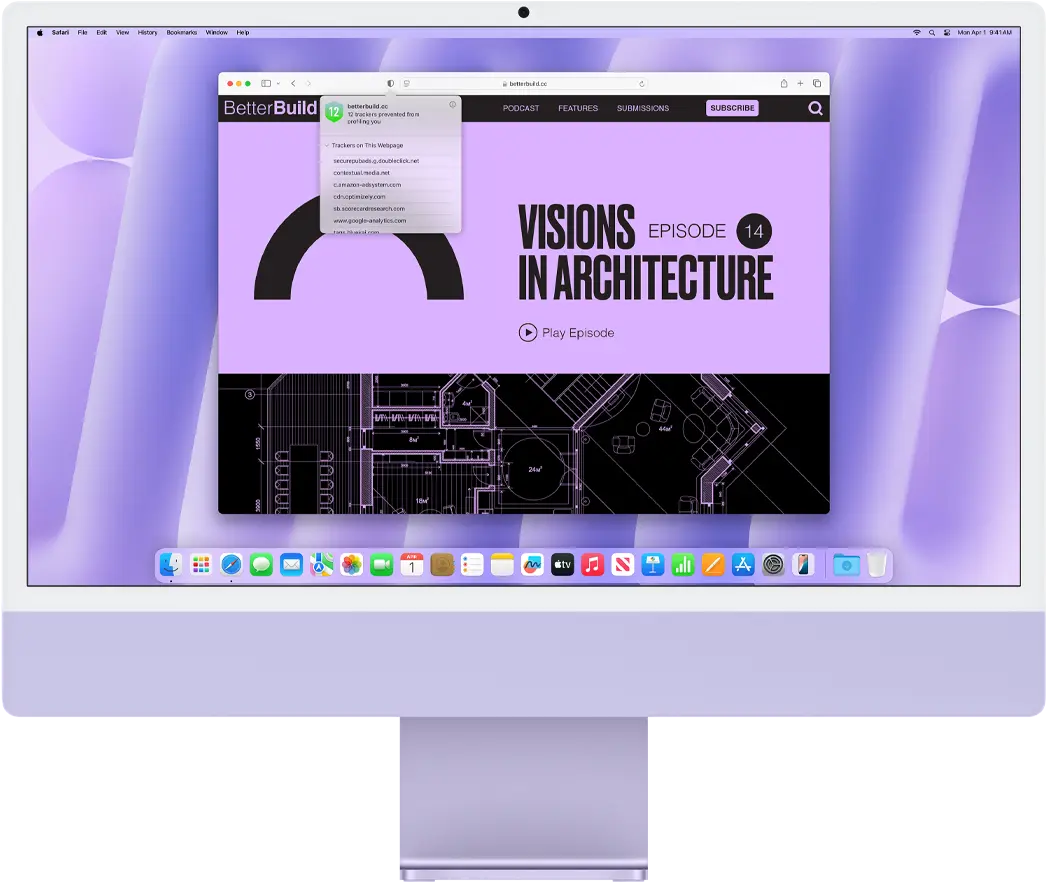
Beyond anti-fingerprinting, Safari’s default tracker blocking is another compelling feature. This mechanism actively prevents third-party trackers from following your online activity as you browse from one website to another. By limiting the reach of these trackers, Safari helps to reduce the amount of data collected about your browsing habits, contributing to a more private and secure online experience. This feature operates automatically, requiring no additional configuration from the user.
Furthermore, Safari enhances privacy through its handling of cookies in private browsing mode. Unlike some browsers that simply disable cookies altogether in private mode, Safari takes a more nuanced approach. It isolates cookies within each private browsing tab, preventing websites from using them to track your activity between different tabs.
This separation adds another layer of privacy, ensuring that your browsing within one private tab remains independent of your activities in other private tabs.
These combined features make Safari a strong option for iOS users seeking enhanced privacy protection.
Recommended Safari Configuration for Privacy and Security
Safari offers several key settings to help protect your privacy and keep your browsing secure.
- To get started, enable Prevent Cross-Site Tracking to stop advertisers and websites from tracking your activity across the web.
- Turning on Block All Cookies enhances privacy but may affect site functionality, so use it thoughtfully.
- Next, activate Fraudulent Website Warning to get alerts about potentially dangerous sites.
- It’s also a good idea to enable Ask Websites Not to Track Me, although some sites may ignore this request. Using Private Browsing Mode keeps your history and searches private on shared devices.
Finally, regularly clear your browsing history and website data via Safari settings to remove stored trackers and cached information.
With these configurations, Safari becomes a strong ally in protecting your online privacy and security without sacrificing usability.